

AWS Account and User
- 1. TerraConstructs - AWS Intro Workshop: not reached
- 2. Prerequisites: not reached
- 3. AWS CLI: not reached
- 4. AWS Account and User: not reached (this page)
- 5. Node.js: not reached
- 6. IDE for your programming language: not reached
- 7. CDKTN CLI Toolkit: not reached
- 8. Terraform CLI: not reached
- 9. TypeScript Workshop: not reached
- 10. New Project: not reached
- 11. CDKTN init: not reached
- 12. Project structure: not reached
- 13. TerraConstructs: not reached
- 14. CDKTN synth: not reached
- 15. CDKTN deploy: not reached
- 16. Hello, CDKTN!: not reached
- 17. Cleanup sample: not reached
- 18. Hello Lambda: not reached
- 19. Optional - Watch: not reached
- 20. API Gateway: not reached
- 21. Writing constructs: not reached
- 22. Define the HitCounter API: not reached
- 23. Hit counter handler: not reached
- 24. Define resources: not reached
- 25. Use the hit counter: not reached
- 26. CloudWatch Logs: not reached
- 27. Granting permissions: not reached
- 28. Test the hit counter: not reached
- 29. Using construct libraries: not reached
- 30. Learning about the Table Viewer construct: not reached
- 31. Installing the library: not reached
- 32. Add the table viewer to your app: not reached
- 33. Exposing our hit counter table: not reached
- 34. Deploying our app: not reached
- 35. Extra credit: not reached
- 36. Clean up: not reached
- 37. Advanced Topics: not reached
- 38. Testing Constructs: not reached
- 39. Assertion Tests: not reached
- 40. Congrats!: not reached
AWS Account for Experimentation
To deploy our app, you'll need access to an AWS account. If you already have an account and your system is configured with credentials of an administrator user, you can move to the next step.
If you don't have an AWS account, you can create a free account here.
Administrator User
-
Sign in to your AWS account
-
Go to the AWS IAM console and create a new user.
-
Type a name for your user (e.g.
cdk-workshop) and choose "Programmatic access".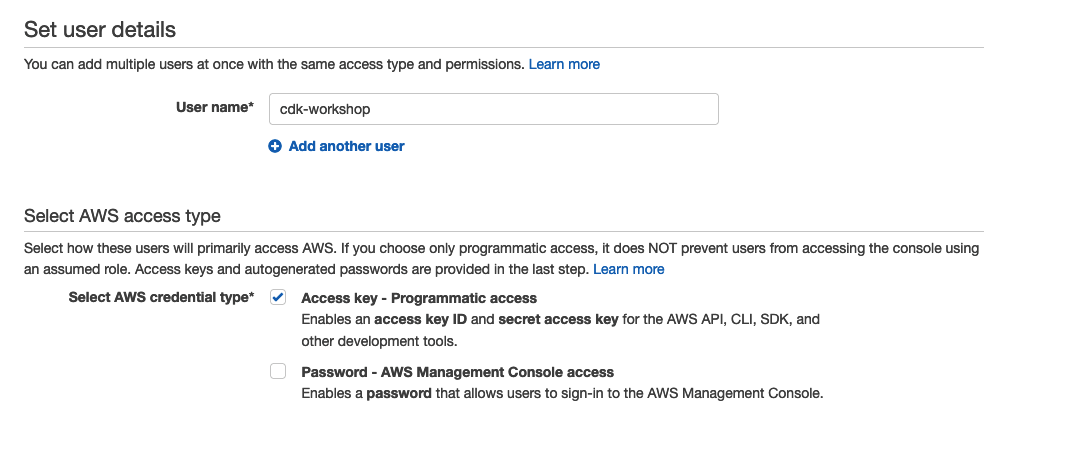
-
Click Next: Permissions to continue to the next step.
-
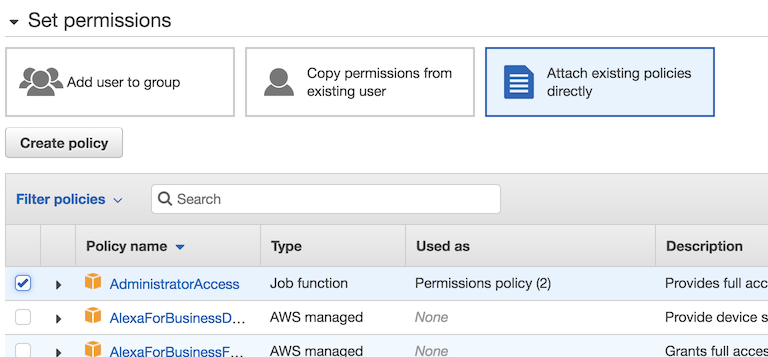
Click Attach existing policies directly and choose AdministratorAccess.
-
Click Next: Review
-
Click Next: Tags
-
Click Create User
-
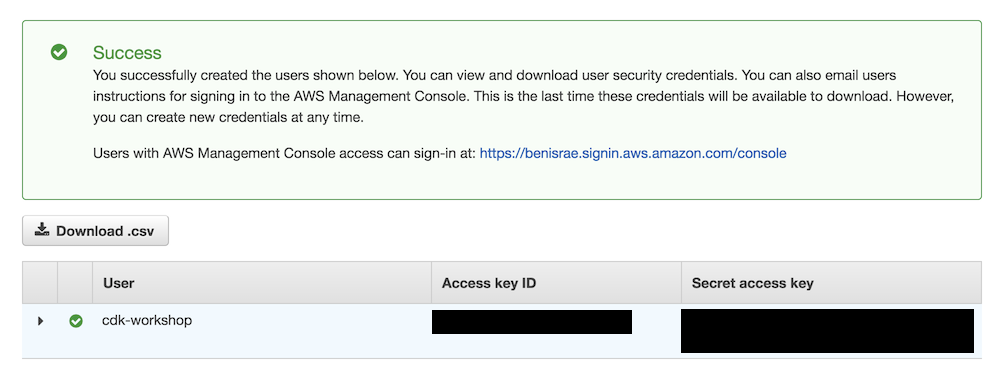
In the next screen, you'll see your Access key ID and you will have the option to click Show to show the Secret access key. Keep this browser window open.
Configure your credentials
Open a terminal window and use aws configure to set up your environment. Type
the access key ID and secret key and choose a default region (you can
use us-east-1, eu-west-1, us-west-2 for example). Preferably use a region
that doesn't have any resources already deployed into it.
aws configureAnd fill in the information from the console:
AWS Access Key ID [None]: <type key ID here>
AWS Secret Access Key [None]: <type access key>
Default region name [None]: <choose region (e.g. "us-east-1", "eu-west-1")>
Default output format [None]: <leave blank>